Trips, parking and the airport: everything for the road in one app
Autoracle works out what each trip cost — from your consumption, the fuel price and maintenance per kilometre — and freezes that figure. On the road it helps you find the car in a car park, not miss the end of your paid parking, understand parking rules in another country and not overpay at the airport terminal.
- Trips in Autoracle are either “Business” or “Personal”; the trip cost is calculated when the trip ends and frozen — it changes only with the “Recalculate” button.
- Fuel on a trip is calculated from average consumption and the price per litre, not by adding up receipts; fines are shown on a separate line and aren’t part of the trip cost.
- “Where I parked” keeps the spot, a photo and a note only on the phone, works offline and reminds you 10 minutes before the paid time ends.
- The parking cheat sheet explains line colours, zones, the parking disc and payment apps for 12 European countries.
- The “Airport” screen is free: more than 1,500 airports in Europe and Asia with scheduled flights, with drop-off rules checked against official websites for several hundred of them.
- The terminal timer reminds you 2 minutes before the free time ends; when you leave for a holiday, the app reminds you on the day you return where the car was left.
- The pre-trip checklist is built from the car’s data, is free and works offline.
How to keep a log of business and personal trips
Each trip is a separate record with the category “Business” or “Personal”, a purpose, a route and kilometres. At the top of “Trips” is the current month’s total: how many trips, how many km and what they cost; below are the “All”, “Business” and “Personal” tabs.
- “Start now” — records the start; while the trip is going, the dashboard shows “Trip in progress”, and at the end — “Finish trip”.
- “In the past” — start and end, route and km in one form, if the trip has already happened.
- Kilometres — from the odometer (the current mileage is filled in at the start), entered by hand, or “Route on the map”: from, via, to — and “Use as km”. In the Android app a trip can also be recorded: “Record trip” — km, time and stops by location or from the car’s data via an OBD adapter.
Only one trip can be in progress at a time. The odometer reading at the finish raises the car’s mileage and goes into the mileage history and statistics. The trip log is free and needs the internet.
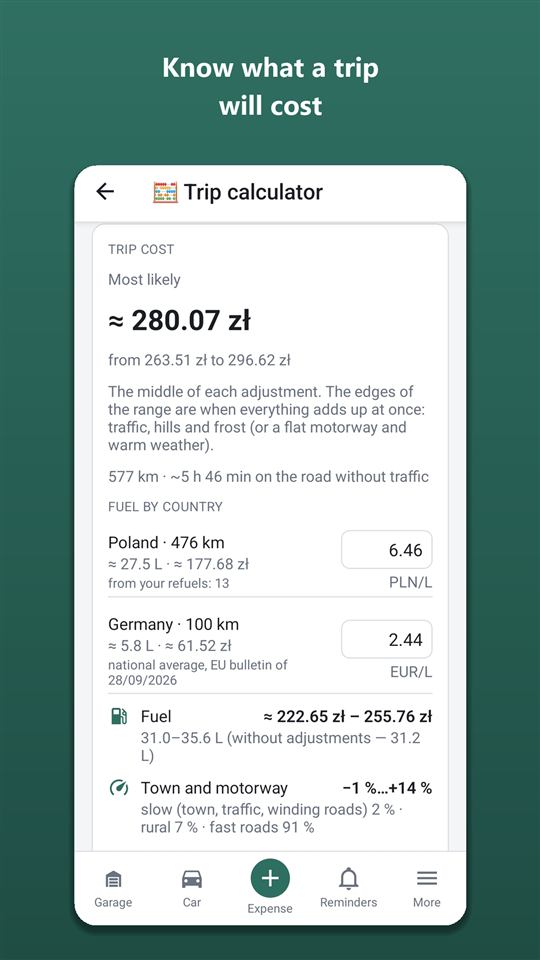
How the trip cost is calculated
Trip cost = fuel at average consumption and price per litre + tolls and parking during the trip + a share of car maintenance for those kilometres. Fuel receipts aren’t simply added up: filling the tank on the way doesn’t mean the whole tank went on this trip.
- Fuel: trip km / 100 × your average consumption × price per litre — from refuels during the trip and linked to it, otherwise from the 60 days before the start.
- Maintenance: workshop, parts and DIY maintenance over the whole ownership divided by the km of ownership, × the trip’s km — the same rate as in the cost per kilometre.
- Fines — on a separate line as an incident, not included in the total.
The figure is frozen when the trip ends: new refuels and prices won’t move it. Changed the route or the linked expenses — tap “Recalculate”.

No pair of full-tank fill-ups — I’ll estimate roughly from receipts and honestly mark it “≈”.
How to link a refuel, toll or fine to a trip
The trip card lists expenses within ±1 day of it: refuels, tolls and fines. Tolls and parking during the trip are counted on their own (“counted automatically”); the rest you tick, then tap “Recalculate”.
The card of a finished trip shows a map of the route, the km by road for comparison, the trip cost breakdown and, if the trip was started from the calculator, a “Route estimate” block — what the trip calculator promised and how it actually turned out.
For those who drive for work: “Business” trips can be exported to Excel as a business mileage log — with the driver and a rate per km (Orik Pro); more on the for business, taxi and delivery page.
Where I parked: the spot, a photo and a parking timer
“Where I parked” remembers where the car is and until when parking is paid, and then walks you back to it. It opens from the “Parking” tile on the dashboard.
- Mark the spot — a GPS point on the map, a note (“level −2, space 45”) and a photo of the spot.
- “Walk there” — a walking route to the car in Google Maps.
- “Paid until” — “+60 min” or your own time; a notification comes 10 minutes before the end.
- “Add payment to expenses” — straight into expenses, “Tolls and parking” category.
Everything is kept only on the phone and works offline — there’s often no signal in an underground car park. The feature is free.
How to pay for parking in another country
On the “Where I parked” screen, under the spot, there’s a “How parking is paid” card for the country where you’ve parked; the country is determined from the point without internet. The same appears in the calculator’s “Rules on the road” and in the trip checklist.
- Zones and road markings for Austria, Belgium, Germany, Spain, Italy, the Netherlands, Poland, France, Croatia, Czechia, Switzerland and Hungary.
- Pictures — a bit of street with markings in the right colour: blue, white and yellow in Italy, blue and green in Spain, blue, orange and purple in Prague; zone entry signs and the parking disc where it’s needed.
- Payment apps — EasyPark, PayByPhone and local ones; the lists change, so check on the spot.
This is a summary of general rules: the signs and the plate on the parking meter come first.
How long can you stop free of charge at the airport
The “Airport” screen shows how many minutes you can stop at the terminal for free, what it costs beyond that and where people meeting arrivals can wait. For example, at Warsaw Chopin Airport, as of the check date — 7 free minutes and up to 3 entries. It opens from the “Airport” tile on the dashboard; the nearest airport is found from your location even offline.
- “Drop off / pick up” — free minutes, the entry limit, the first paid tier. Tap “I’ve stopped at the terminal” to start a timer; a notification comes 2 minutes before the end and at the end.
- Where drop-off is paid from the first minute (for example, in London), a free alternative is shown alongside.
- Board and my flight — “Departures” and “Arrivals” open the airport’s flight board (official or on Flightradar24); enter your flight number and its status opens in Google or Flightradar24. The number is stored only on the phone.
The directory holds more than 1,500 airports in Europe and Asia with scheduled flights. Rules are checked only against the airports’ official websites, starting with the ones people drive to most; several hundred have been checked so far. Where they haven’t been checked yet, it says so — while the distance, the drive, “Remember where I parked” and the reminder still work. The “Airport” screen is free forever.
Where to leave the car when you fly away for a few days
The “Flying away for a few days” block compares the cost of leaving the car at the airport with taking a taxi. Enter the dates and you’ll see:
- the airport’s official car park and the cost for your days, if the airport publishes its tariff (with the check date);
- fuel there and back — at your car’s consumption and price per litre;
- a taxi — at the price you enter.
“Remember where I parked” marks the parking spot, and at 9:00 on the day you return a reminder tells you where the car is. “Add parking to expenses” — into “Tolls and parking”. If the destination in the trip calculator is an airport, a card linking here appears there.
What to check on the car before a long trip
The “Pre-trip checklist” builds itself from the car’s data and the trip dates — no AI, free and offline. You can open it from the calculator (the route and dates are filled in) or from “Checklists”.
- Pad and disc wear, tread depth and tyre season against the trip dates, radiator clogging — from current condition.
- Reminders that fall due during the trip, taking its km into account.
- Insurance and inspection on the trip dates, the Green Card and vignettes for the route countries.
- For an electric car — charging; for a long drive — rest stops; what to take with you, with extra items in winter.
Items are ticked with a tap, and the ticks stay on the phone. Orik’s comment (Orik Pro, 2 credits) adds 2–4 key points for this particular trip, based on the car’s history and the route.
Frequently asked questions: Trips, parking and the airport: everything for the road in one app
Are the trip log and “Airport” paid features?
No. Trips with their cost, “Where I parked”, parking rules, the “Airport” screen and the pre-trip checklist are free. Orik Pro adds the business mileage log in Excel and Orik’s comment on the checklist (2 credits).
Why isn’t the trip cost equal to the sum of the receipts?
Because a tank filled on the way isn’t all burnt on that trip. Fuel is calculated as km × average consumption × price per litre, plus tolls, parking and a share of maintenance.
Will the trip cost change if prices go up?
No: it’s frozen when the trip ends. You can recalculate it by hand with the “Recalculate” button.
Does “Where I parked” work offline?
Yes. The spot, photo and note are kept only on the phone, and the timer is a local notification. Even the country for the parking cheat sheet is found offline.
Does the app record trips by GPS?
Yes, if you turn it on: in the Android app “Record trip” records kilometres, time, stops and the route by location, and with an OBD adapter — the car’s data too. The recording goes into Trips only after “Save trip”. You can also do without recording — by odometer, by hand or by a route built on the map.
How far can I trust the airport rules?
Rules are taken only from official websites, and every checked airport has a check date. Where rules haven’t been checked yet, the app says so. Signs on the spot come first.
Popular road trips by car: how much the drive costs
Road trip cost calculator for driving in Europe
The Autoracle calculator plans the route by road, sees which countries it crosses and works out fuel at each country’s price, toll roads, vignettes and ferries.
Learn moreA car for work: taxi, delivery, business and VAT
If your car earns money, you need to know not just the costs but the profit from every kilometre.
Learn moreHad a car accident? What to do — step by step, by the country’s rules
Autoracle’s “Accident: what to do” screen walks you through the steps at a moment when it’s hard to think straight: where you are, whom to call, how to make the scene safe, what to photograph, which details to take from the other driver and how to tell your insurer.
Learn moreTry it with your own car
All tracking is free forever. Photo recognition and Orik the assistant — 3 days of Pro free after sign-up.