Digital service book for your car
Every workshop visit and DIY repair in one book: what was replaced, at what mileage, which parts were fitted and what the mechanic advised. Just photograph the work order — and show the history to a buyer or a new mechanic as a PDF extract or with a QR sticker on the car.
- Oil and filter12.09.2026 · 84,200 km
- Front brake pads03.05.2026 · 76,900 km
- Scheduled service15.10.2025 · 68,400 km
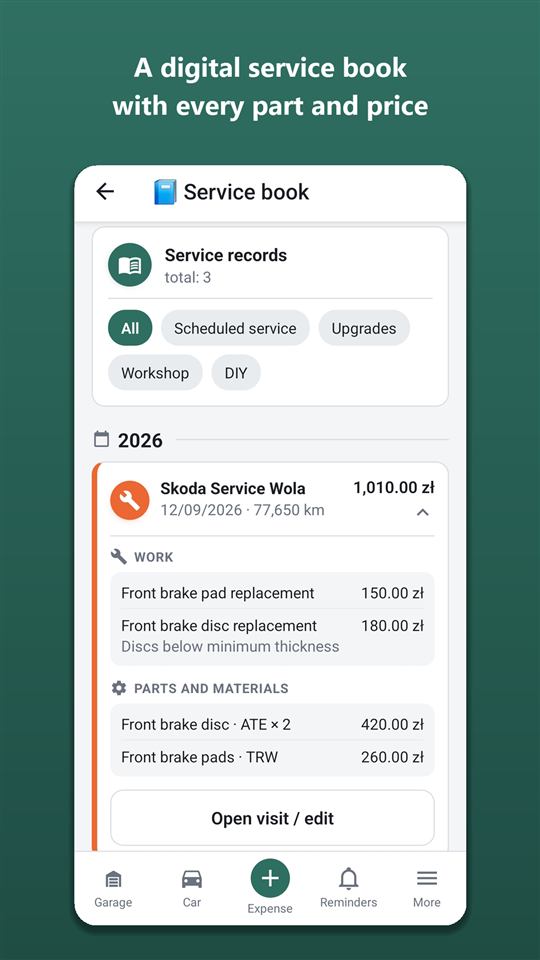
- The Autoracle service book collects workshop visits and DIY maintenance records by year — with jobs from the catalogue, parts (name, brand, part number) and scanned work orders.
- A work order is recognised from a photo or a file (PDF, Excel, Word) — up to 8 pages at once, 5 Orik Pro credits; filling everything in by hand is free.
- The “Latest work” block shows when and at what mileage each job was last done — oil change, brake pads, timing belt.
- The PDF extract for a buyer or a workshop is in Orik Pro; documents, the registration document and the purchase price never get into it.
- Recalls for the car’s make, model and year are checked every day against the official EU Safety Gate database.
- The “Share history” QR sticker opens a page with the service history without prices, documents or the number plate — free.
- The marks “VIN confirmed by the registration document” and “confirmed by a workshop document” are set by the server when the VIN on a recognised document matches the car.
What’s kept in the digital service book
The service book holds the car’s whole service history: workshop visits and what you did yourself. Viewing and keeping it is free, including offline — the screen opens from a saved copy.
Each visit is a card with the workshop name, date, mileage and total (labour plus parts). Tap the card to expand:
- jobs — from the catalogue, grouped by the car’s systems, with prices and the mechanic’s comments; a job that isn’t in the catalogue is saved under its name from the work order;
- parts — name, brand, part number or OEM number, quantity and price;
- the mechanic’s recommendations that haven’t been done yet;
- work order pages and any attached files — photos, PDF, Word, Excel.
Labels on the card tell you what kind of visit it was: “Scheduled service”, “Tyres changed”, “Upgrade”. At the top of the book is the car and a summary of its current condition: pads, discs, tyres and radiator, coloured by the worst axle.
A DIY repair is recorded as “DIY maintenance”: what you did, what it cost and which parts were used. It goes into the book if it has parts — or if you turned on the “Add to the service book?” switch yourself.
How to log a workshop visit from a photo of the work order
Photograph the work order (or upload a PDF) — Orik splits it into jobs, parts and recommendations, and you check and save. Recognised data is never saved without your confirmation.
A document may run to several sheets: add all the pages and tap “Recognise” once — the work order is read as a whole, as a single document. Recognising a work order costs 5 Orik Pro credits (+2 for every page over two); if it fails, the credits are refunded automatically. More on formats and prices — on the filling in from photos page.
What the app does on its own after recognition:
- replacing pads, discs or the radiator (as a job or a part on the work order) sets that part to new in “Current condition”;
- tyre fitting among the jobs offers to mark “Tyres changed” — the set on the car is switched;
- the mechanic’s recommendations with a mileage or date become reminders: 1,000 km or a month before they’re due;
- if the work order says which scheduled service it is (“Service 40,000 km”), all the jobs of that service are marked as done in the service schedule.
Without a subscription you fill in the visit by hand: jobs by searching the catalogue (“oil change”, “pads”), parts in ordinary fields, the work order photo as an attachment. That’s free forever.

Snap the work order right at the workshop till — a year from now you’ll thank yourself when you need the part number of those exact pads.
When did I last change the oil: the “Latest work” block
The “Latest work” block answers that straight away: for each job in the catalogue it shows the most recent visit — the date, the mileage and how many kilometres have passed since.
For example: “Oil and oil filter change — 12.03.2026, 84,210 km, 6,300 km ago”. Six jobs are shown at the top; the “Show all” button expands the full list. “Other” jobs are counted by their name from the work order.
Below are the service records themselves, by year, with filters: all, scheduled service, workshop, DIY, upgrades and checks (completed checklists).
You can also find a specific record with “Search records” in “More”: by workshop name, job, part, brand, part number or note. Search returns up to 100 records and needs the internet; a tap opens the record found.
A PDF service history extract for a buyer or a workshop
The “Share (PDF)” button in the service book puts together an extract: the car and its specifications, current condition, latest work and the full service history. The file goes out through the usual “Share” — to a messenger, email or the printer.
Before creating it you choose what to show:
- prices of jobs and parts — hidden by default;
- number plate and VIN — shown by default;
- completed checklists — optional.
Documents, the registration document and the purchase price never get into the extract. The PDF extract is part of Orik Pro (€4.99 per month or €29.99 per year); in countries where AI is unavailable it’s free. The extract is created in the interface language.
How to find out whether your car is subject to a recall
Every day Autoracle checks your car against the European Commission’s official Safety Gate recall database and shows any matches in the service book, in the “Recalls” block. It’s free.
The check compares the make, model and year of manufacture against the production dates in the recall. If a recall is found, you’ll see the model, date, production period, code, a description of the hazard and links — to the recall itself and to the manufacturer’s website; a reminder appears at the same time. If nothing is found, the book says so — that’s useful to know too.
A match by make and year doesn’t guarantee that your particular car is on the list: the dealer can tell you for sure by VIN. That’s why Orik’s reminder suggests checking with the dealer. The hazard description is shown in English — as in the official database.
A recall means a free repair at the manufacturer’s expense. Don’t put off calling the dealer.
Can anything be added through the QR code
No: nothing can be added or changed through the sticker. For that, the history page has a “Request access” button — and the decision is always the owner’s.
The person chooses who they are — “Mechanic / workshop” or “Buyer”, enters a name and phone number (the phone is required, email isn’t) and passes the “I’m not a robot” check. You get a push, and the app shows a request card: “For 1 day”, “For a week” or “Decline”. Tap the phone number to call and check.
- A mechanic, once approved, goes straight to the visit form in the same browser. Their entries come to you for approval and reach the car only after you tap “Accept”.
- A buyer sees the history until the access ends — even if you’ve hidden it.
No more than 5 requests a day per car; names and phone numbers are deleted 30 days after your answer. You can switch requests off completely and close access early. For a regular mechanic a separate link with write access is more convenient — see shared car and mechanic link.
History with confirmations: how a buyer can check the records belong to this car
Next to the history on the QR page there are marks that only the server sets — the owner can’t set or fake them.
- “VIN confirmed by the registration document” — the car’s VIN matched the VIN Orik read from a photo of the registration document.
- “Confirmed by a workshop document” — the visit has a work order, and the VIN recognised on it matched the car’s VIN.
Marks appear on documents recognised by Orik; visits entered by hand don’t have them — which doesn’t mean the record is wrong. Edits and deletions in the history aren’t counted or shown: correcting your own mistakes is normal.
That’s why it’s called “History with confirmations” and not “verified history”: Autoracle shows what matched and doesn’t judge the car.
Checklists and the previous owner’s history in the book
A fully completed checklist — “Winter prep”, “Summer prep”, “Used-car inspection” or your own — goes into the history with the date, mileage and number of ticked items. In the book it’s shown under the “Checks” filter, and in the PDF if you choose.
If the previous owner handed the car over to you through Autoracle, their visits are added to your book marked “from the previous owner” — without prices, notes or photos. How it works and what else is transferred — on the switching apps and selling the car page.
History from other apps can be moved over by import too: Fuelio, Drivvo, aCar, Simply Fleet and others, or your own Excel or CSV spreadsheet.
Frequently asked questions: Digital service book for your car
Is the Autoracle service book free?
Yes. Keeping the book, viewing the history, latest work, recalls and the QR sticker are free forever. Orik Pro adds recognising work orders from photos (5 credits) and the PDF extract.
Can I add old visits retrospectively?
Yes. The visit date is an editable field; future dates aren’t allowed. An old visit won’t overwrite a more recent inspection in “Current condition” — the condition is updated only by visits no older than 60 days.
Does the service book work offline?
Viewing — yes, from a saved copy. A new visit made offline is queued and sent automatically; editing and recognition need the internet.
Will a buyer see my prices?
Via the QR sticker — never. In the PDF extract prices are hidden by default; you can show them with a tick box when creating the file.
What if my car came with a paper service book?
Photograph the work orders and add them as visits — recognition does it faster. The schedule pages of the booklet can be recognised separately — that gives you a maintenance plan.
Can I turn off the QR page?
Yes. Switch off “Show the history via the QR” — only the car remains, or “Reissue the code” — old stickers stop working at once.
Your car’s current condition and tyre sets
How much is left on the front and rear pads, what tread your winter tyres have, where the summer set is stored — all on one screen.
Learn moreService schedule and car maintenance reminders
Autoracle remembers for you when to change the oil, the timing belt and the brake fluid, when the insurance runs out and when it’s time to change tyres.
Learn moreSwitching from another app and selling your car
Years of records don’t have to be left behind: Autoracle moves fill-ups, expenses and visits over from popular apps and from an ordinary Excel or CSV spreadsheet.
Learn moreTry it with your own car
All tracking is free forever. Photo recognition and Orik the assistant — 3 days of Pro free after sign-up.