Scan fuel receipts, work orders and car documents from a photo
With Autoracle you don’t retype receipts: photograph a fuel receipt, a workshop work order, an insurance policy or a registration document, and Orik, the AI assistant, puts the data into the form fields. Nothing is saved without your confirmation — you check, correct if needed and tap “Save”.

- Autoracle reads fuel and charging station receipts, workshop work orders, insurance policies, registration documents, fines, taxes, parts receipts, tyre storage receipts and maintenance schedule tables from a service booklet.
- A document can have several pages: up to 8 photos or files are sent in one request as a single document.
- Photos, PDF, Excel (.xlsx), Word (.docx) and text files are accepted; Excel and Word are read as text, so there are no character-reading errors.
- Recognised data is never saved automatically — only after you check it and tap “Save”.
- Recognition is part of Orik Pro and costs credits: fuel receipt — 1, document — 2, work order — 5, schedule from a booklet — 15; if it fails, the credits are refunded automatically.
- Documents are read by Anthropic’s Claude models; complex multi-page work orders go to the strongest model.
- Mileage is taken from a receipt only when it is explicitly labelled as mileage; it is not read from a photo of the dashboard.
How filling in from a photo works
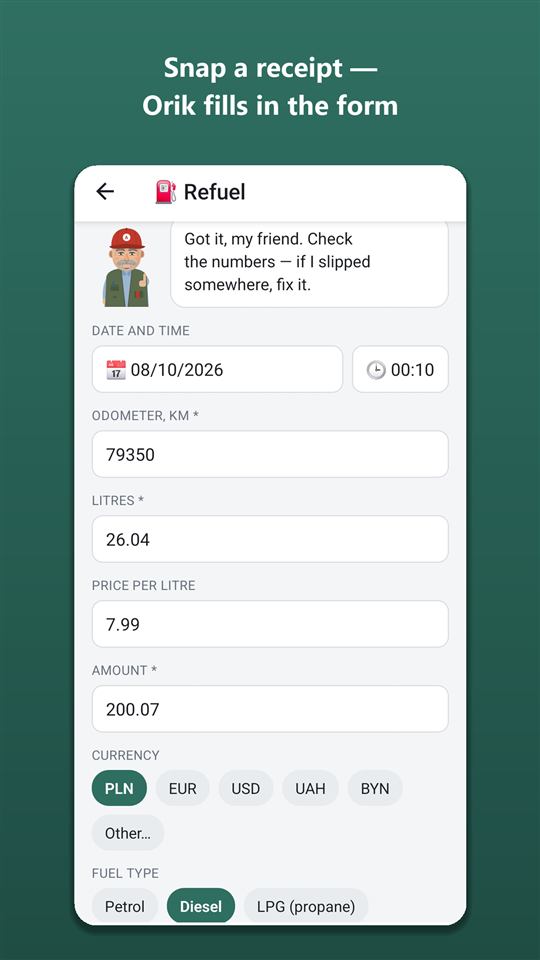
You photograph a document or pick a file, Orik reads it and fills in the form fields, and you check the result and save the record. Any field can be corrected by hand.
Recognition isn’t just reading characters — it’s understanding the document. From a receipt Orik takes the litres and price, from a work order the jobs done and the parts fitted, from a policy the dates and the insurer’s contacts. In forms where a document can run to several pages, you collect the pages first and recognise them with one button — so the whole document goes in one request and nothing is wasted.
- “Quick expense” — one button on the dashboard for any receipt or document: shoot all the pages, tap “Recognise”, and Orik works out what it is — fill-up, service, parts, car wash, document, parking, fine or shop — and opens the right form with the photos. For identifying a document that isn’t a fuel receipt the credit is refunded — you only pay for recognition in its own form.
- A fuel receipt in the “Fuel” form is recognised right after you take the photo: this is the main “one shot” scenario, and a receipt is always a single sheet.
- Other documents — add all the pages (“+ Page”, gallery or file) and tap “Recognise all pages”.
- Recognising again replaces the previously recognised lines (jobs, parts, recommendations), while anything you added by hand stays.
I help, but you have the last word: check the numbers — and only then tap “Save”.
How to log a refuel from a photo of the receipt
On the dashboard tap “Quick expense”, shoot the receipt and tap “Recognise” — Orik sees that it’s a fill-up and fills in the litres, price per litre, total, fuel type and grade, station name and date. An e-receipt in PDF can be uploaded as a file.
What else is found on the receipt:
- Discount — loyalty card, coupon, “Rabat”, “−0.15 per litre”. The total stays equal to what you paid, the price per litre is as shown on the pump, and the discount goes into a separate field and later into the “Saved with discounts” statistic.
- VAT — for a car with VAT tracking turned on, the VAT amount, rate and the station’s country are recognised.
- EV charging — the amount in kWh, the charging type (slow AC or fast DC) and the charge percentage before and after, if they appear on the receipt or the charger screen.
- Mileage — only if a number on the receipt is explicitly labelled as mileage (“Mileage”, “Przebieg”, “Odometer”, “Kilometerstand” and so on). Card, pump and receipt numbers and tax IDs are never taken as mileage.
- Other purchases on the same receipt — coffee, a hot dog, screenwash, a car wash. An “Also on the receipt” block appears under the fill-up: each item with a tick and a category — parts, DIY maintenance or “Station shop”. Ticked items are saved as separate records together with the fill-up, and the fill-up total stays for fuel only.
- A receipt with only the total — sometimes a receipt has neither litres nor price (in Belarus, for example). Orik suggests a price per litre — from your previous fill-up with this fuel, the median of users’ receipts in the country or the EU bulletin price — calculates the litres from the total and marks them “≈”. You can type in the price from the pump display yourself.
Mileage from a photo of the dashboard is deliberately not recognised: dashboards vary too much and mistakes are likely. If the receipt has no mileage, type it into the field — the last reading is shown underneath for reference. Once the app has five or more refuels with mileage, Orik may suggest an estimate of “about N km”, which you accept or replace with the exact figure.
Station from your location. If location access is already allowed, the nearest station within 300 m is filled in automatically, with no extra questions. The name from the receipt takes priority over the one from your location, and the coordinates are kept. Example: you put in 42.61 l of petrol 95 at 2.45 for a total of 104.39 — the fields are filled, the station is found, and all that’s left is to enter the mileage of 84,210 km and tap “Save”.
Before saving, the app checks the record: the mileage doesn’t contradict neighbouring records, the amount filled doesn’t exceed the tank size, and the price per litre is no more than 40% off your usual refuels. More on fuel logging — on the expense tracking page.
How to scan a workshop work order
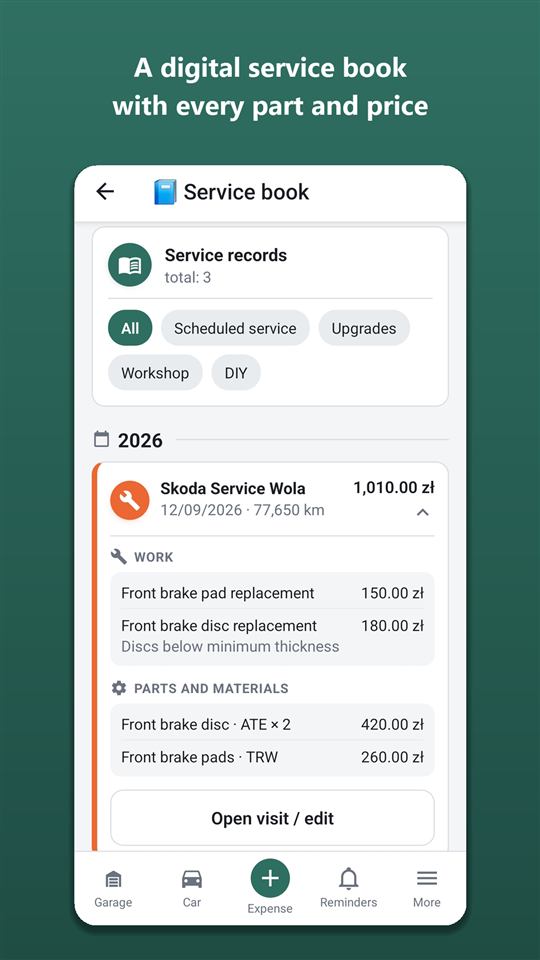
Photograph every page of the work order (or upload a PDF) in the “Workshop” form and tap “Recognise all pages” — Orik splits the document into jobs, parts and the mechanic’s recommendations.
- Jobs are matched to the app’s job catalogue (“Oil change”, “Front brake pad replacement” and so on). A job that isn’t in the catalogue is recorded as “Other” with the name from the document.
- Parts and materials — name, brand, part number, quantity and price. If the work order replaced pads, discs or the radiator, that item in “Current condition” is set to new.
- The mechanic’s recommendations become reminders: with a mileage — a reminder 1,000 km ahead, with only a date — a month ahead.
- Which service it was — if the work order says “Service 40,000 km”, the visit is marked as that service in the schedule, and all the jobs of that service count as done.
- Warranty — if the work order states warranty terms for the work or parts, the form shows “Warranty found… — add”, and it is saved together with the visit.
- VIN on the work order — if it matches the car’s VIN, the visit gets the mark “confirmed by a workshop document” for the car’s history page.
Tyre storage, general service terms and warranty disclaimers are not treated as recommendations. The visit total is the labour, while parts are recorded as separate items of the same visit. Everything goes into the digital service book, and the condition of the parts into current condition.
What other documents can be recognised
Besides receipts and work orders, Orik fills in the registration document, insurance policy, fines, tax, parts receipts, tyre storage receipts and the maintenance schedule from a service booklet.
- Registration document — make, model, year, VIN, number plate, engine, fuel, colour, body type, country of registration and the date the car was registered to the owner (used as the purchase date). You can add a car to your garage straight from the registration document.
- Policy — number, validity dates, insurer and contacts (helpline, agent), plus the policy details: policyholder and their address, number plate, VIN and make of the insured car, Green Card number. If the number plate or VIN doesn’t match the car, Orik asks whether it’s the right policy. More — car documents.
- Fine and tax — amount, date, what for.
- Parts receipt — each item as a separate record: name, brand, part number, quantity, price; if the receipt states a warranty period, the warranty can be saved straight away.
- Tyre storage receipt, invoice or tyre fitting work order — season, studs, size, brand and model, quantity, production date (DOT), tread per axle, rims, storage fee, storage address and term. The tyre fitting charge from the same document can become a separate workshop visit. A photo of the tyre sidewall itself isn’t recognised — only documents.
- Maintenance schedule from a service booklet — photograph the pages with the schedule table: Orik lists the items and intervals for you to confirm, you correct anything extra and save them to the plan. More — maintenance schedule and reminders.
Which formats and how many pages are supported
You can recognise a photo from the camera or gallery, a PDF, Excel .xlsx, Word .docx and text .txt — up to 8 pages or files at once.
- From another app: send a photo or PDF via “Share” → Autoracle — “Quick expense” opens for the right car and recognises the pages straight away.
- Photos are scaled down to 1,600 pixels on the long side and saved as JPEG before sending — faster and easier on your data, while the text stays readable.
- Excel and Word are converted to text on the server: spreadsheet rows line by line, formulas as their values. It’s cheaper than a photo and free of character-reading errors.
- Old .xls and .doc formats can be attached but not recognised — save the file as .xlsx, .docx or PDF.
- Attachments (contract, warranty card, invoice) can be added to any record — photos and files up to 15 MB. They are stored with the record but not recognised.
Saved files can be opened, downloaded and shared.
How much does recognition cost
Recognition is part of Orik Pro and uses credits: fuel receipt — 1, document — 2, work order — 5, schedule from a service booklet — 15. Entering the same records by hand is free forever.
- Document (policy, registration, fine, tax, parts receipt) — 2 credits plus 1 for every page over two.
- Work order — 5 credits plus 2 for every page over two.
- If recognition fails, the credits are refunded automatically; resending the same request isn’t charged twice.
Orik Pro costs €4.99 per month or €29.99 per year (in Poland 18.99 / 119.99 zł) and includes 30 credits a month. The trial gives 3 days of Pro and 10 credits — enough, for example, for a registration document, a policy, one work order and one fuel receipt. Credits beyond the subscription come in packs that never expire.
Without a subscription the recognition buttons are still visible, and Orik tells you how to turn on Pro. A mechanic you’ve given a link to the car can also recognise a work order — the credits are taken from the car owner.
Where recognition is unavailable, and does it work offline
Recognition works only online and only in countries where Anthropic’s services are permitted; without a connection you can still enter the record by hand.
- Offline, the photo isn’t sent for recognition, but you can fill in the form by hand and save it: the record and its photo join a queue and go to the server on their own once you’re back online.
- Countries without AI. Anthropic doesn’t allow its services in a number of countries, including Belarus and Russia. There, recognition and the chat with Orik are switched off, no credits are charged, and the other Orik Pro features (PDF extract, Excel export, unlimited shared car) are free. The country is determined by the connection address at the time of the request, not by your profile: on a trip to such a country recognition is unavailable, at home in the EU it works.
Frequently asked questions: Scan fuel receipts, work orders and car documents from a photo
Does Orik save data on its own, without me?
No. Recognised data is only filled into the form fields. The record appears once you’ve checked it and tapped “Save”.
Can I recognise an e-receipt or a PDF invoice?
Yes. Upload the PDF as a file. Excel .xlsx, Word .docx and .txt are accepted too — up to 8 pages or files at once.
Why doesn’t Orik read the mileage from a photo of the dashboard?
Dashboards vary a lot and it’s easy to get wrong. Mileage is taken only from a receipt where it’s explicitly labelled — otherwise type it in yourself or accept Orik’s estimate.
Is recognition free?
Recognition is part of Orik Pro and uses credits (receipt — 1, document — 2, work order — 5). The three-day trial gives you 10 credits. Entering all records by hand is free forever.
Does recognition work offline?
No, recognition needs a connection. But you can fill in the record by hand: it’s queued together with the photo and sent automatically once you’re back online.
Which AI reads my documents?
Anthropic’s Claude models, through the Autoracle server; the AI key is never inside the app. Recognition is available in countries where Anthropic permits its services.
Car expense tracker: fuel, repairs and insurance — in any currency
Autoracle keeps every car expense in one place — from a refuel to a fine or a loan payment.
Learn moreDigital service book for your car
Every workshop visit and DIY repair in one book: what was replaced, at what mileage, which parts were fitted and what the mechanic advised.
Learn moreService schedule and car maintenance reminders
Autoracle remembers for you when to change the oil, the timing belt and the brake fluid, when the insurance runs out and when it’s time to change tyres.
Learn moreTry it with your own car
All tracking is free forever. Photo recognition and Orik the assistant — 3 days of Pro free after sign-up.